



Last week, I made the case that consistency in scripts isn’t really about tidiness. Yes, it helps readability, but more importantly, It’s about communication. Its about building something that other people (and future you) can actually navigate without needing to read each component to understand the script.
I like to think of this like leaving a trail of breadcrumbs for people to follow. It’s not to explain or document the script in it’s entirely, it’s to just guide people through the thinking behind it.
By just providing some structure, it can drastically improve the way people understand and use your script. And in Grasshopper, the easiest way to do that is through a script template.
It’s something you make once and it will automatically be in Grasshopper every time you start a new script.
My Grasshopper Template
I’ve been refining this for years now. I started simple with just a couple of components to help colour groups and stuff. Then, I went to the other end. I added components to track usage, log components, etc. It really slowed down the performance and I added a lot of unneeded bloat to every script.
So, I have settled somewhere in-between (but towards the lighter end of things.)
There are two things in my current template that make it useful: auto group colouring and a plugin list. I’ll walk through both, and explain how to get the file at the bottom of this post.
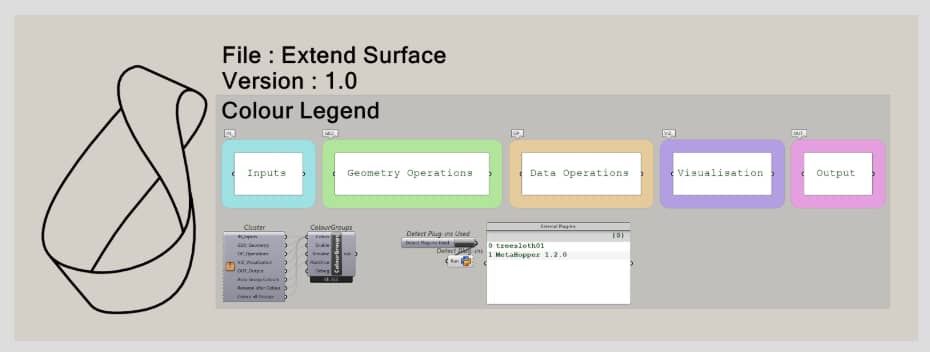
Group Colouring
To me, the most important part of a script is how things are grouped. When you group your components together and label it, this tells me in a broad sense how the script works. It gives me enough detail to know the large steps but not so much that I am reading every component.
Then, to take it a step further, you can apply colours to these groups. Using something like a colour legend, I can look at the overall script and instantly know the role of each group.
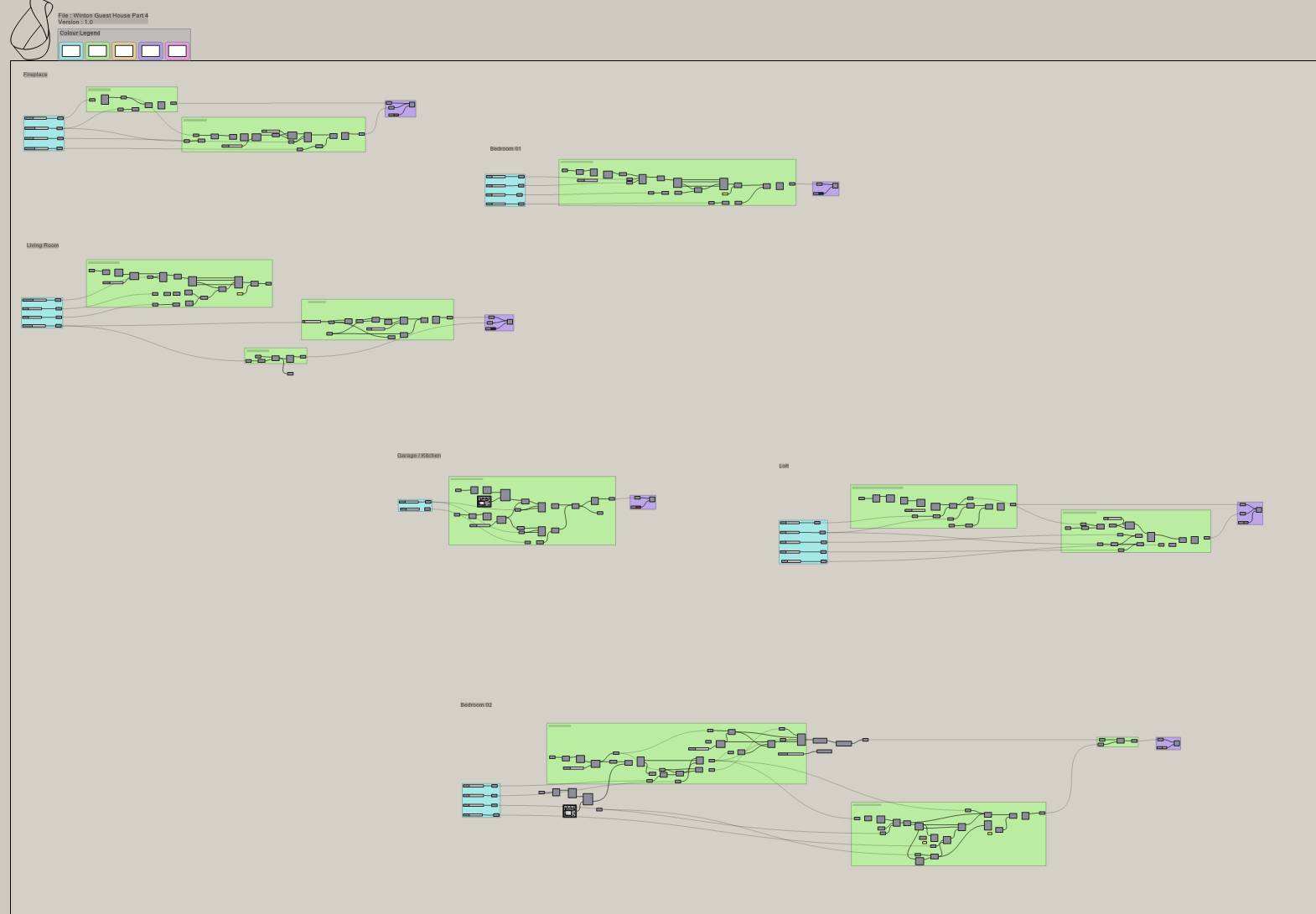
But colouring groups is annoying to do manually and it’s hard to manually apply the correct colours consistently.
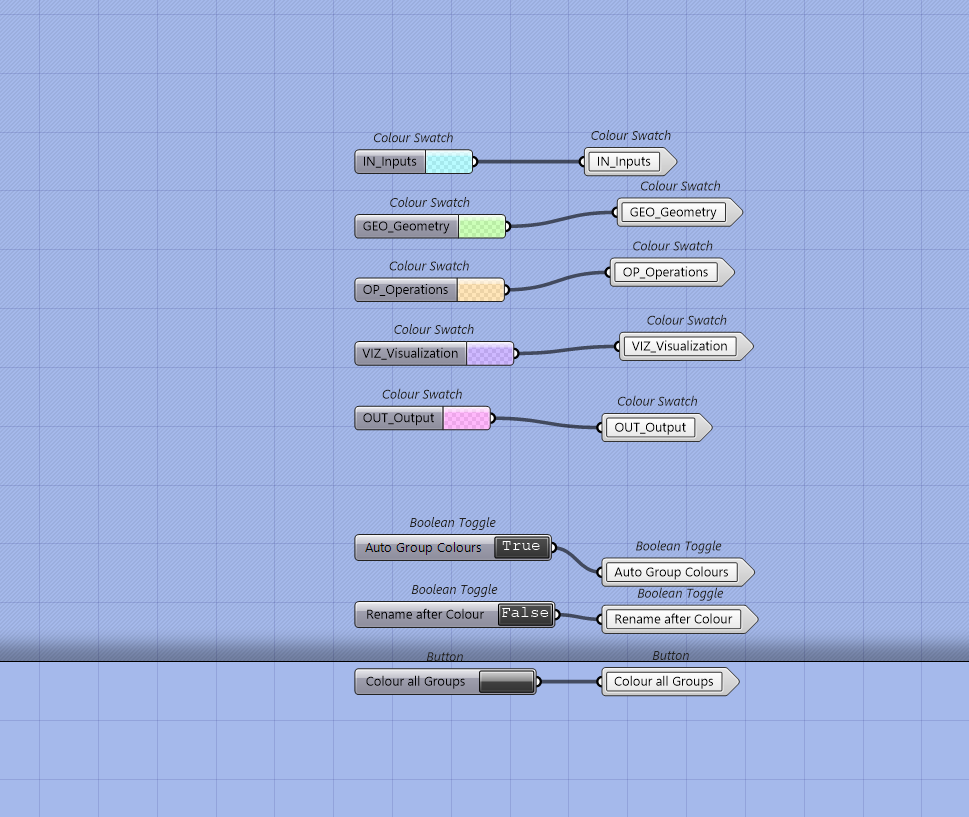
So, I created something that would colour groups based on a naming convention
Here’s how it works.
Every group in the template follows the same format: {ABBREV}_{Name}.
So, if you rename your group with “IN_” in front of it, it’s colour will be set to the one you had above. So for me, that’s the cyan colour.
There are five categories in the template:
IN — Inputs. The things someone hands the script.
GEO — Geometry. Any geometry that gets generated or manipulated.
OP — Operations. The logic. Where the actual work happens.
VIZ — Visualization. Preview geometry, analysis meshes, anything display-only.
OUT — Outputs. What the script hands back.
I landed on these five because they cover most of what a typical Grasshopper script actually does. The good thing about this is, you can add more conventions and colours depending on what you typically find in your scripts. I have added “PROC” for process and “DEP” for deprecated to some of my older scripts before.
his is important because anyone opening your script can orient themselves before they read a single component. The colors are visible immediately. They know where the inputs are. They know what’s geometry and what’s output. It’s a shared language that everyone will understand.
It’s also I think this feature is the most useful one of my template. Consistent colours and grouping alone can take you quite far in communicating your script to others.
External Plugin List
Alright, the second feature of the template I find handy is just displaying a list of external plugins used in the script.
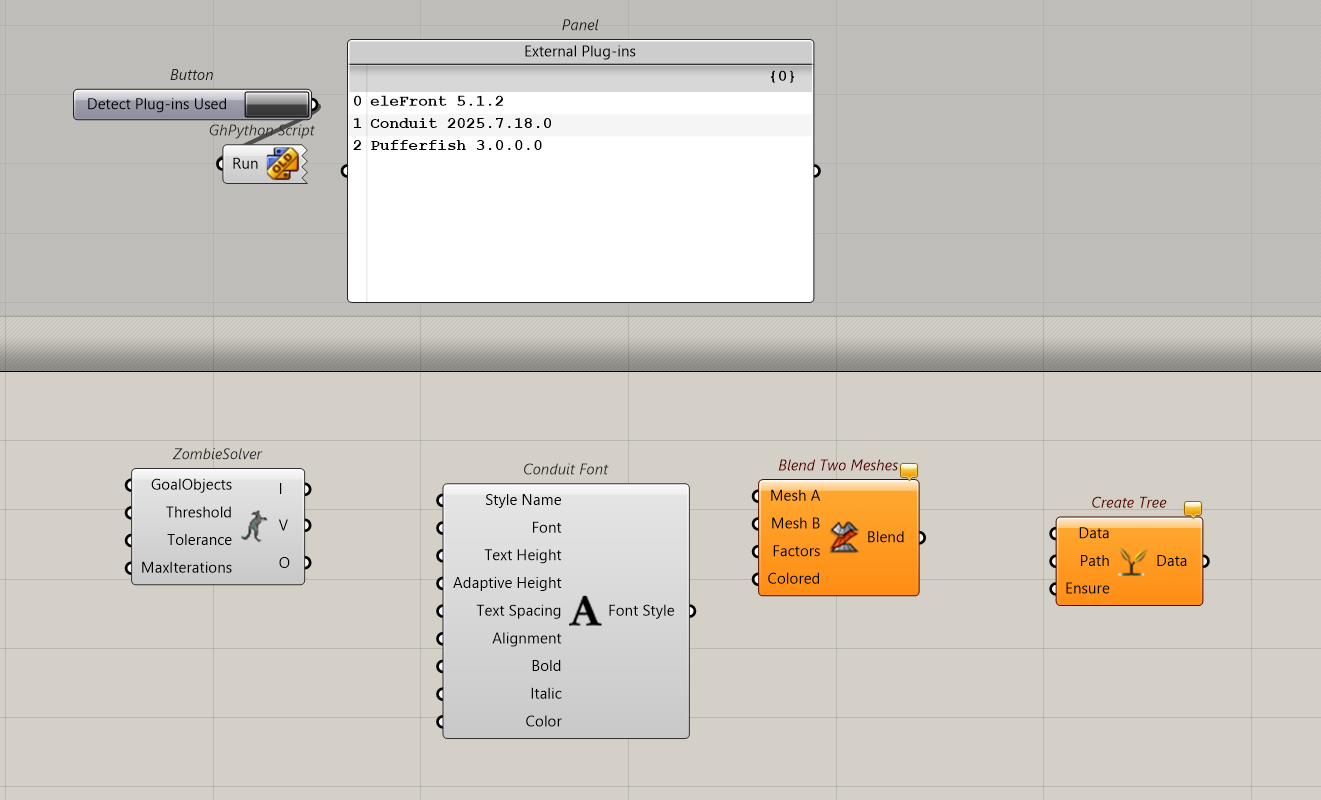
With more and more Grasshopper plugins moving to Rhino’s package manager, this is less of a problem. As anyone can just download the missing packages automatically. But, you still do get the occasional .gha file that is in your local plugin folder. That means when you share the script with someone, you have to share any local .gha files too.
I am using a python script here to just tell me the external plugins that are in my script. It’s a quick way to remind me what plugins I need to send to others if need be. It’s a small thing but I have found it quite handy.
Setting the template file in Grasshopper
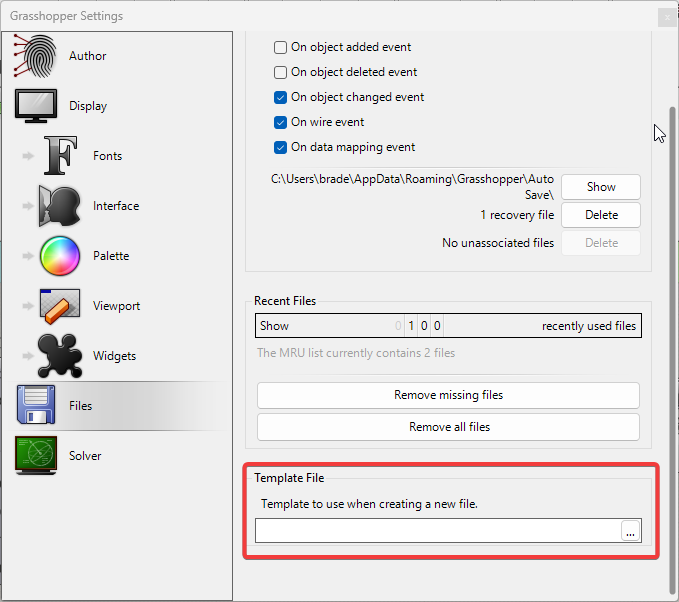
Okay, to set this up as a template in Grasshopper, all you have to do is go to settings and set the default template to your template file.
What to do with my template
The simplest use case here is to take my template, modify it to make it your own. Or you can use it straight. To start off, just use the 5 categories I have, then slowly add your own as you see fit.
I recommend using a fix set of categories for at least 3-6 months first to see what’s really common in your scripting. You want to keep your colours as consistent as possible for as long as possible. Use the template for a few weeks first, see which conventions feel right and which ones don’t. Then modify.
Change things from a place of experience, not just preference. Because your preference can change quite wildly.
Get the template (not ready yet)
Okay, I’m still working on Scripository, which is a new platform where you’ll be able to download this template and more. I’ll update this article with the download link when the template is ready.
In the meantime, reply to this email or email me at braden@codedconstructs.com and I can send you the template.
Thanks for reading. If you’d like more articles like this, subscribe to CodedShapes to get them delivered to your inbox
Work with me: https://codedconstructs.com/contact/
Computational Design Courses: https://learn.codedshapes.com/
Scripository (A library of computational scripts): https://scripository.com/