



I once had a Grasshopper script that produced three separate parts of the same a model. Like a car where you have the doors, the body and the engine. They are technically part of the car but are detailed enough to be treated individually.
Okay, I needed to export multiple parts because I have a single, pretty complicated script that produces the models.
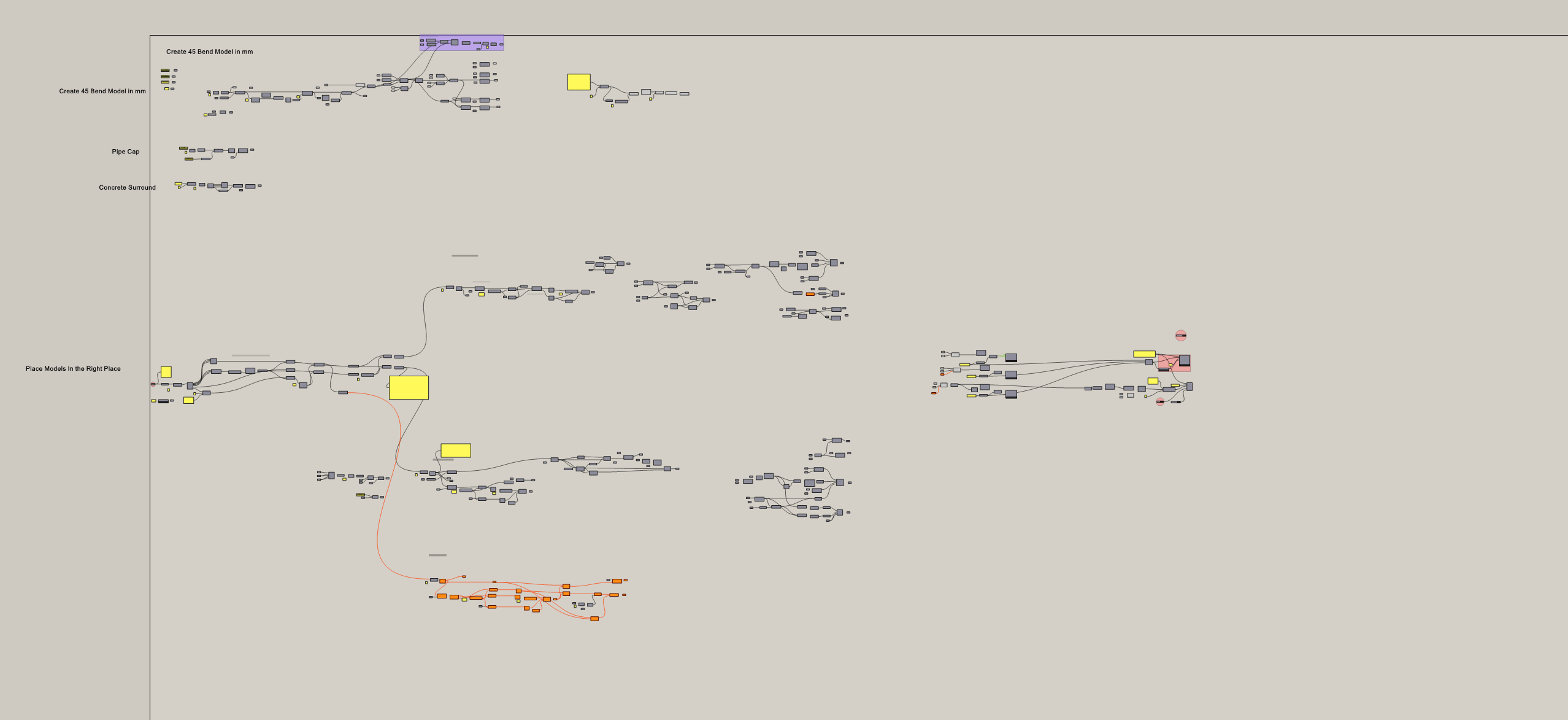
So, for the first few times, I did the export manually. What’d I do is bake all the parts from my script into Rhino, then select each part and then export them to individual files.
It was manual and quite annoying to do. So, by the third time, I had enough.
I did some research and found a way export these files through Grasshopper instead of manually
doing it. It’s now one of the small workflows that I have in almost every geometry creation script.
If you’re a paid member of CodedShapes, you get access to the script below along with my other courses, guides and templates
How this works
They key thing about this workflow is leveraging Rhino layers.
The first things I do is use Elefront to bake objects into the right layers. Then I select those objects in Rhino and export them into their own files. The best part is that the export component let’s you select the format.
This is important because using Rhino layers means I don’t have to re-wrangle my data structure to meet the export structure.
Like if my data-tree is structured per material (e.g. steel, rubber, wood) but I need to export per part. Using the Rhino layers is a good way to bridge that without polluting the original structure.
The script
Okay, so if you’re a paid member of CodedShapes, you get access to the sample files below. You can see how I am using this workflow in some of the past projects I have worked. If not and you’ve been wanting to learn more Grasshopper, this might be a good time because a membership gets you access to courses and other resources too.
